Compare two Excel or CSV files, instantly.
Drop two files: budget and actual, this month and last, version 1 and version 2. Every variance is calculated and highlighted automatically. No more VLOOKUPs, no more formulas to maintain.
Last updated: March 5, 2026
Comparing two files in Excel takes too long
VLOOKUPs and formulas to maintain
You build VLOOKUPs, INDEX-MATCHes, variance formulas. When columns change, everything breaks. When the file changes, you start over.
Large variances go unnoticed
A $50,000 variance hidden in 500 rows. You do not see it scrolling. It ends up in your report.
Online tools require uploading your data
Comparing budget and actual involves confidential financial data. Uploading it to a server is not an option.
DataVariance calculates every variance automatically
Drop two files. Pick the key columns and the value columns. DataVariance calculates dollar and percentage variances, highlights the largest ones, and generates an exportable report.
Side-by-side comparison
Both files are displayed side by side, with the differences highlighted.
$ and % variances
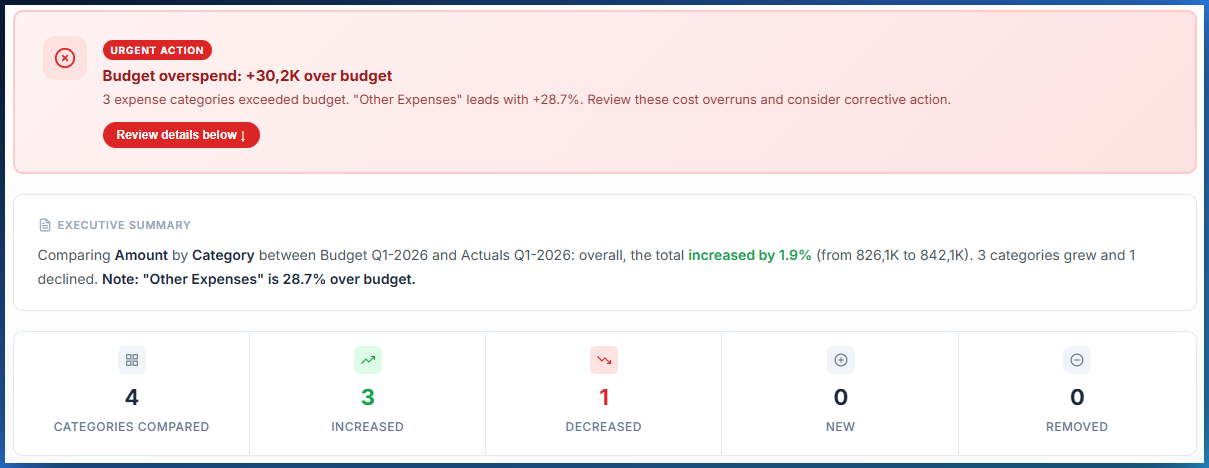
Every row gets a dollar and percentage variance, sorted by impact.
Key findings summary
The largest variances are summarized at the top, for a quick review.
Excel export
Export the full report to Excel, with formatting and variance highlighting.
Why local processing protects your data
No files uploaded
Your files never leave your computer. All processing happens in your browser.
Works offline
After loading, disconnect from the Internet and keep comparing files.
No account required
No sign-up, no password. You open the page and start.
Quick answers
How do I compare two Excel files without uploading them?
DataVariance runs 100% in your browser. Drop two files, configure your comparison, and see every difference instantly. No file is ever uploaded.
Can I compare budget and actual in Excel?
Yes. Drop your budget file and your actuals file. DataVariance calculates every variance, shows dollar and percentage differences, and highlights the largest deviations.
Which file formats are supported?
DataVariance compares Excel (.xlsx) and CSV files. You choose the key columns to align rows and the value columns to compare.
Ready to compare two files?
Drop two Excel or CSV files and see every variance in seconds. No file is ever uploaded.
Try DataVariance