The complete guide to extracting tables from PDF to Excel.
Everything you need to know about extracting tables from PDF files to Excel or CSV. Bank statements, invoices, financial reports. Common problems, methods that work, and the browser tool that does it automatically.
Last updated: March 5, 2026
What you will learn in this guide
Why PDF tables are difficult to extract
How PDFs store text and why copy-paste always fails.
Extraction methods compared
Copy-paste, online tools, Python, and browser-based extraction. Pros and cons of each approach.
Document types covered
Bank statements, invoices, financial reports, credit card statements, and more.
The solution: automatic extraction in the browser
How PDFTable solves all these problems without sending your files to a server.
Why PDF tables are so difficult to extract to Excel
A PDF is not a spreadsheet. It is a presentation format: it stores each piece of text with a position (X, Y) on the page, but it does not know what a row or column is. When you see a table in a PDF, it is your brain reconstructing the structure, the file does not contain it.
Copy-paste scrambles columns
Your PDF reader reads text left to right, top to bottom. But table columns do not follow that order. The result: Date, Description, and Amount end up in a single column.
Multi-page tables get split
A 10-page bank statement has a header and footer on every page. When you copy, headers mix with data and running balances distort your calculations.
Merged rows and overflowing text
Long descriptions that wrap to two lines. Merged cells. Columns that change width from page to page. Each case breaks simple tools.
Currency symbols and number formats
Amounts with $, parentheses for negatives, thousand separators: once pasted into Excel, they are no longer numbers but text.
Extraction methods compared
Manual copy-paste
Free but unreliable. Columns get scrambled, multi-page tables must be copied page by page, and cleanup takes longer than the extraction itself. Only works for very simple single-page tables.
Online tools (iLovePDF, Smallpdf, etc.)
Easy to use but your files are uploaded to a server. For bank statements and financial data, that is a major security risk. Extraction quality varies a lot depending on the PDF structure.
Python (Tabula, Camelot, pdfplumber)
Powerful and flexible, but requires programming knowledge. You need to install Python, configure the environment, write code for each PDF type. Not practical for accountants and bookkeepers.
Browser-based extraction (PDFTable)
The best combination of ease and security. Drop your PDF, extraction is automatic, and your file never leaves your computer. No Python, no server, no installation.
Types of documents you can extract
PDFTable works with any PDF that contains selectable text and a tabular structure. Here are the most common cases.
Bank statements
Checking, savings, credit card. Multi-page transactions with totals and balances.
Learn more →Financial reports
Financial statements, balance sheets, income statements, and management reports generated by accounting software.
Tax and government documents
Declarations, sales tax statements, and reports downloaded from government portals.
How PDFTable extracts tables automatically
PDFTable uses a five-step position analysis to detect and extract tables from any PDF.
Row grouping
Text elements are grouped into rows by their Y position, with adaptive tolerance based on the typical line height of the page.
Column detection
X positions of elements in the densest rows are clustered to define column anchors. Less dense rows are aligned to these anchors.
Multi-page merging and splitting
Tables continuing across pages are merged. Distinct tables on the same page are split using vertical gap analysis and column structure changes.
Review extracted tables
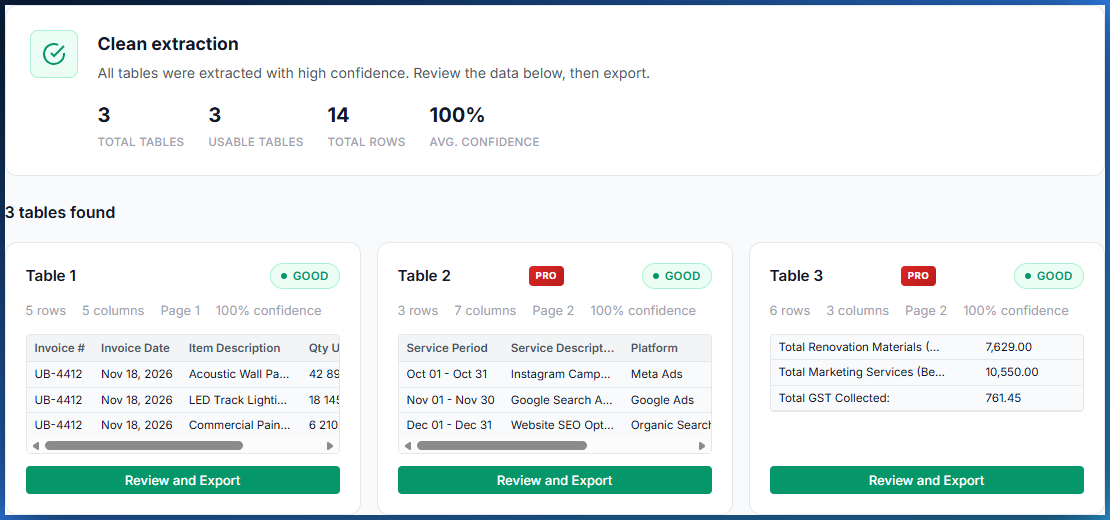
Review each extracted table in its own tab. Reclassify data rows and summary rows with one click as needed.
Export to Excel or CSV
Export each table as a formatted Excel (.xlsx) or CSV file, with styled headers, filters, banded rows, and auto-sized columns.
The most common mistakes
Uploading financial data online
Your bank statements contain your account number, transactions, and balances. Sending them to an external server is an unnecessary risk. Use a tool that stays in your browser.
Not reviewing after extraction
Even the best tool can have uncertainties about some cells. Always review highlighted cells and totals before using the data.
Keeping totals with transactions
Total and subtotal lines must be separated from transactions for your calculations to be correct. PDFTable does this automatically.
Quick answers
What is the best way to extract a table from a PDF?
The most reliable way is a tool that analyzes the position of every text element to rebuild the table structure. PDFTable does this entirely in your browser, no upload. Copy-paste from a PDF reader almost always scrambles the columns.
Can I extract tables without uploading the PDF online?
Yes. PDFTable runs 100% in your browser. The PDF is processed locally on your computer. No file is ever sent to a server.
Why does copy-paste scramble columns?
PDFs store text as positioned elements, not rows and columns. The reader reads in visual order and loses the alignment. Date, Description, and Amount end up in a single column of mixed text.
Does extraction work with scanned documents?
No. Text extraction requires a PDF with selectable text. Scanned documents (images) need OCR first, a separate process. Most downloaded statements and reports contain selectable text.
Ready to extract your PDF tables?
Drop your PDF and get a clean Excel or CSV file in seconds. No file is ever uploaded.
Try PDFTable for free